Information Technology Services
  • Services
    • Services for...
      • Students
      • IT Services for Faculty
      • IT Services for Staff
      • Sponsored Affiliates at NAU
    • Hardware & Software
      • Computer & Endpoint Device Purchasing
      • Printing
      • Web Browsers
      • Software at NAU
    • Communication & Collaboration
      • Email & Calendars
      • NAUgo Mobile App
      • Phones, Mobile, & Voicemail
      • Video Conferencing & Messaging
    • Professional Services
      • Enterprise Business Analysts
      • Development
      • Project Management
      • Training & Documentation
      • Web & Mobile Development
      • Solution Recommendation & Design
    • General Services
      • Our Services
      • Service Catalog
      • Service Management
    • Infrastructure & Networking
      • File Sharing & Storage
      • Remote Services
      • Servers & Hosting
      • Wi-Fi & Networking
    • Academic & Research Technology Services
      • Canvas
      • Artificial Intelligence
      • Classroom Support
      • Computer Labs
      • Survey & Statistical Services
      • High Performance Computing
      • Secure Computing
  • Security
    • Information Security at NAU
    • Phishing
    • Two-Step Verification
    • Antivirus
    • Data Security
  • Get Help
    • Search Knowledge Articles
    • Submit a Ticket
    • View My Tickets
    • Contact Information & Hours
  • About
    • About ITS
    • Contact Information & Hours
    • Directory
    • News
    • ITS Employee Forms
    • ITS Meeting Spaces
    • Organizational Structure
    • About our CIO
  • IN
  • ITS
  • Spaces


Meeting & Office Workspaces

ITS.BusinessServices@nau.edu


ITS has a variety of conference rooms and hotel workspaces available for employees to rent out for meetings, events, and in-person or hybrid work accommodations. These workspaces are equipped with monitors, phones, and other hardware to suit the needs of the user.


⠀
Meeting & Conferencing Spaces

View ITS’ meetings and conference rooms available to book.

View spaces ›

⠀
Hotel Office Workspace Offerings

View hotel office workspaces available to book for individuals or small groups.

View spaces ›

⠀
How to reserve & technology capabilities

Learn more about the tech capabilities of bookable spaces, and how to book a space.

Learn more ›


⠀

Meeting and conferencing spaces


Conference Room 106 “The Room of Requirement”
  • Whiteboard
  • Seats 1 – 30
  • Movable table and chairs
  • TV displays with webcam (2)
  • Bluetooth Room Speaker

Book this room ›


Conference Room 140
  • Whiteboard
  • Seats up to 15
  • TV display with webcam (1)

Book this room ›


Conference Room 112A
  • Whiteboard
  • Seats up to 12
  • TV display with webcam (1)
  • Charging outlets available

Book this room ›

ITS Think Tank
  • Whiteboard
  • TV display (1)
  • Seats up to 8
  • No tech capabilities

Book this room ›


⠀

Hotel office spaces

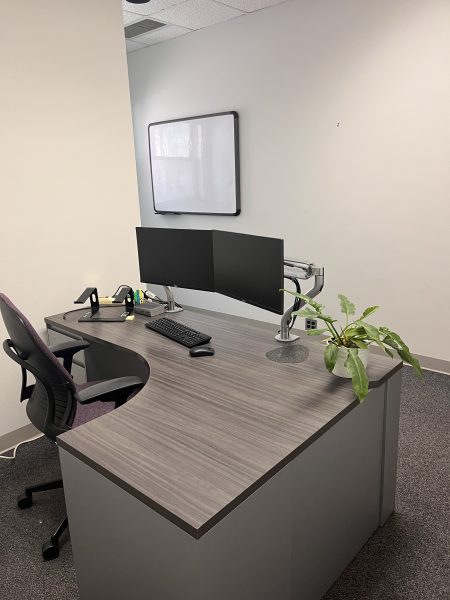
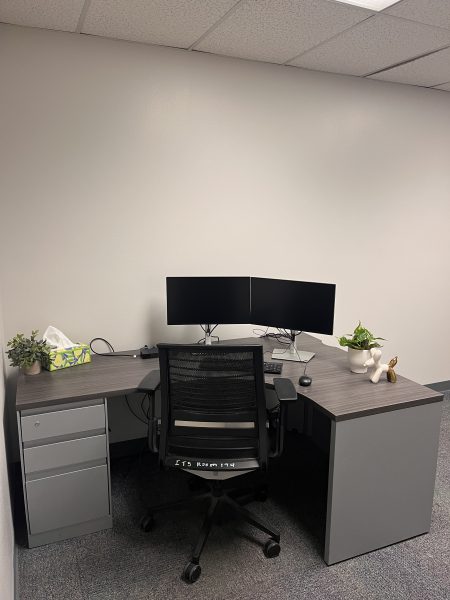
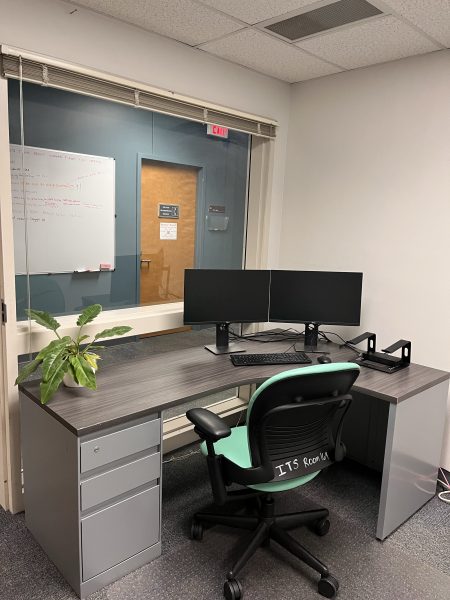
Please note: These spaces are facilitated with monitors, a docking station, desks, and chairs. Staff booking out an office should bring their own technology, as many of these spaces have no dedicated computer.


Room 130

  • Dual adjustable monitors;
  • A standard office desk;
  • USB-C docking station;
  • Standard office chair;
  • Whiteboard.

Book this room ›


Room 174

  • Dual adjustable monitors;
  • USB-C Docking Station;
  • Standard desk;
  • Standard office chair.

Book this room ›


Room 176

  • Dual adjustable monitors;
  • USB-C Docking Station;
  • Standard desk;
  • Standard office chair.

Book this room ›


⠀

Conferencing Room Resources


  • Ensure TV Input is set to HDMI 1
  • Turn on wireless keyboard and mouse
  • Press any key to wake up computer
    • If computer does not wake up, ensure power is on using the power button on the computer, mounted to the back of the TV
  • Sign in with your NAU user ID and password

  • Change TV Input to HDMI 2 using TV remote
  • Connect provided cable to your device

  • To start your meeting, log into the dedicated PC and open the platform your meeting is in.
  • The webcam and microphone are mounted to the wall under the TV, and are ready for use.

How to book a space

Using Outlook

  1. Go to Outlook;
  2. Click on the Calendar icon;
  3. Click on ‘Meeting’;
  4. Add Room (i.e. ITS Rm 130);
  5. Check the schedule;
  6. Send.

Using the wall panel

  1. Click the ‘Book now’ button on the wall panel to configure time in the space.
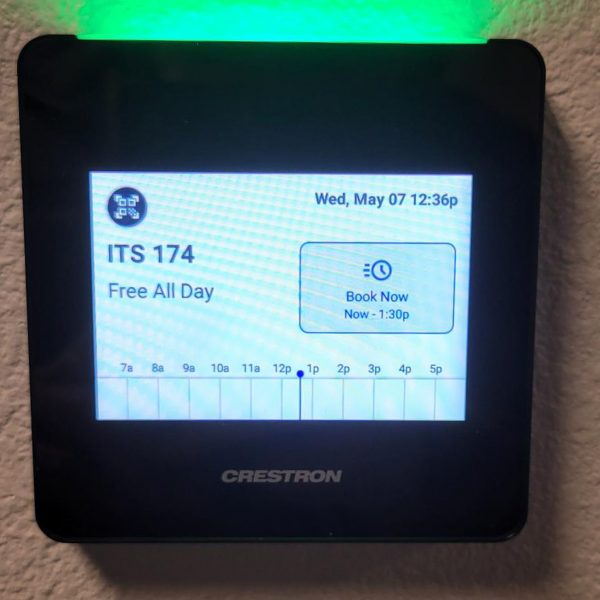
A wall panel with a button labeled 'book now'.

Opens in new tab
Information Technology Services
Location
Building 54
Information Technology Services
1301 S. Knoles Drive
Flagstaff, AZ 86011
Mailing Address
PO Box 5100
Flagstaff, AZ 86011
Email
ask-its@nau.edu
Phone
928-523-3335
888-520-7215
Social Media
Visit us on X Facebook Instagram Youtube