Fall 2023 Exchange Email Updates
• Cybersecurity
• Exchange Email
• News & Updates
With the increasing threat of phishing and other cyberattacks to universities, ITS is working to fortify email security for the digital safety of the Lumberjack community. 5 min read ?
More easier phishing reporting options
We’ve rolled out new phishing reporting options that make reporting a suspected phishing attempt easier than ever. With this update, you can now report a suspicious email to our security teams directly from your Outlook email client with a push of a button. When you report phishing with these new methods, the suspected email will be sent to our security teams for review and further action.
Report a phish in the toolbar
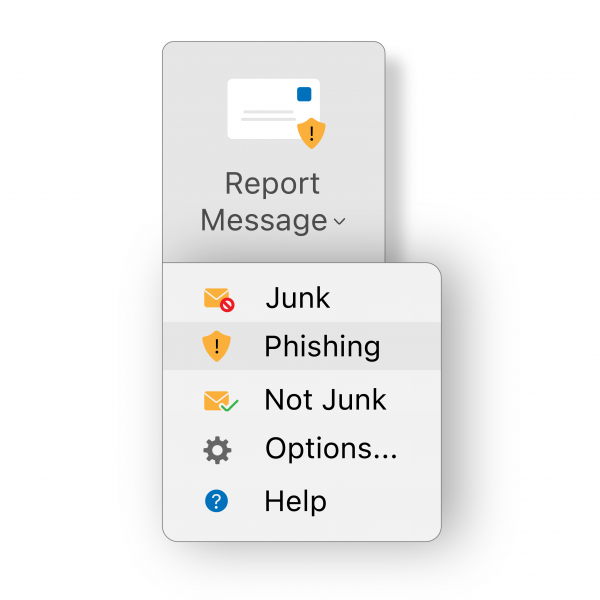
In your Outlook application’s user interface, you’ll see a button that reads “Report Message”. Clicking on this button will display a drop-down menu with additional options. To report the email as a phish to ITS, click on “Phishing” in the drop-down menu.
Report a phishing in the email body menu
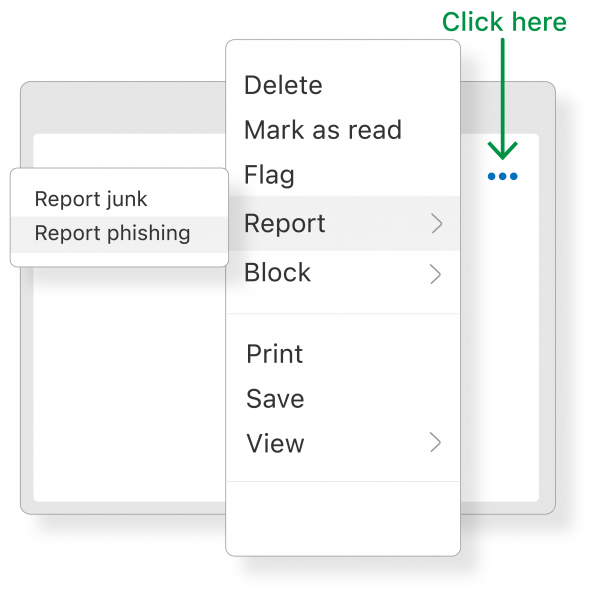
In the body of an email in Outlook, you’ll see three ellipses in the top right corner of the window that you can click to display a menu drop-down. After clicking on the ellipses, you can navigate to “Report”, and then click on “Report phishing”.
Remember, only report emails through the “Report Phishing” option that you believe are phishing attacks. You can report spam or junk mail through “Report Junk”.
Still a little confused about how to identify phishing? The National Cybersecurity Alliance has some great tips to help you identify a phish.
If you’re still unsure about an email, you can always forward the email to us at phishing@nau.edu. Our teams can help answer questions and assist in identifying possible phishing attacks.
External flags to NAU email addresses
Emails received from an external organization or email system are now flagged with an “External Sender” warning. This warning simply serves as a reminder to apply extra caution against emails that are attempting to appear legitimate but are from an external source.
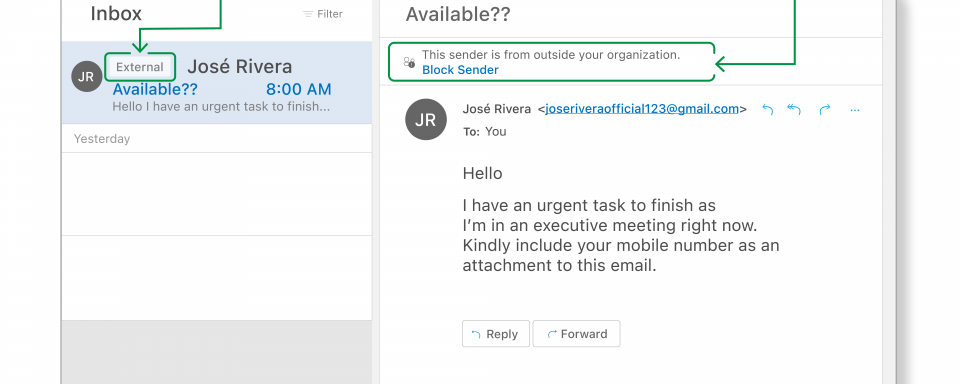
Sender alerts and warnings
If our systems notice something suspicious about the Sender of the email, we’ll add a warning at the top of the email. It’s important to note that the presence or lack of the warning does not necessarily indicate that the email is fraudulent. This is another flag for you to be able to judge the validity of the email before interacting with it.
Examples of how these verification badges and banners will appear in your Outlook client:
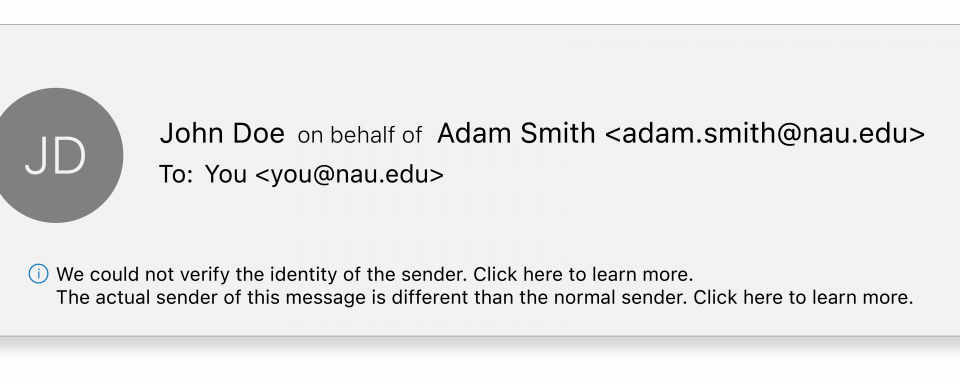
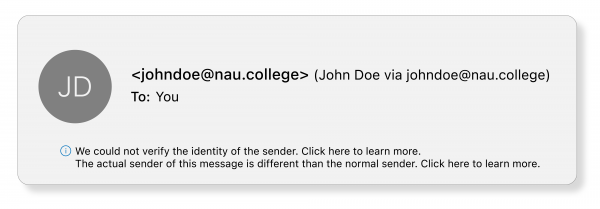
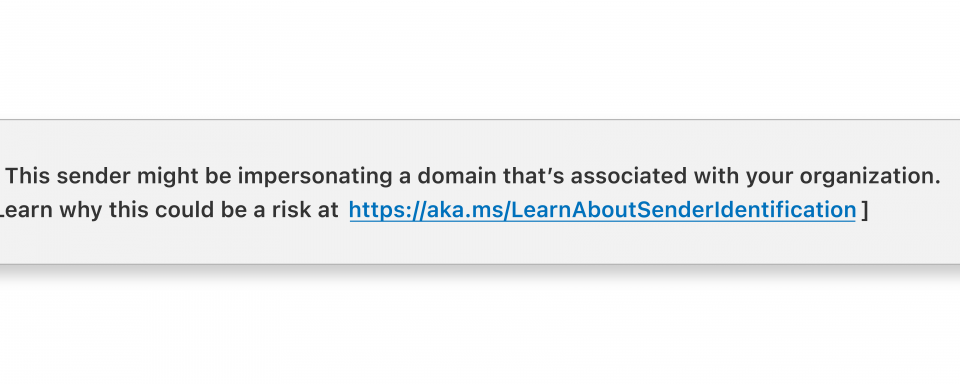
Again, it’s important to note that just because this message might appear on an email you receive, it does not mean the email is malicious.
Restrictions to auto-forwarding
When emails for NAU work or instruction are forwarded to external sources (such as a personal email account), ITS is unable to protect and secure the data through those channels. External forwards to unauthorized addresses are prohibited under university policy.
Questions or Concerns?
Reach out to us by email or phone and reference updates to Exchange email—we’re happy to answer any questions you may have.