
Information Technology Services
Virtual Visit Request info Apply
MENUMENU
  • Services
    • Services for...
      • Students
      • IT Services for Faculty
      • IT Services for Staff
      • Sponsored Affiliates at NAU
    • Hardware & Software
      • Computer & Endpoint Device Purchasing
      • Printing
      • Web Browsers
      • Software at NAU
    • Communication & Collaboration
      • Email & Calendars
      • NAUgo Mobile App
      • Phones, Mobile, & Voicemail
      • Video Conferencing & Messaging
    • Professional Services
      • Enterprise Business Analysts
      • Development
      • Project Management
      • Training & Documentation
      • User Experience & Design
      • Web & Mobile Development
      • Solution Recommendation & Design
    • General Services
      • Our Services
      • Service Catalog
      • Service Management
    • Infrastructure & Networking
      • File Sharing & Storage
      • Remote Services
      • Servers & Hosting
      • Wi-Fi & Networking
    • Academic & Research Technology Services
      • Canvas
      • Artificial Intelligence
      • Classroom Support
      • Computer Labs
      • Survey & Statistical Services
      • High Performance Computing
      • Secure Computing
  • Security
    • Information Security at NAU
    • Phishing
    • Two-Step Verification
    • Antivirus
    • Data Security
  • Get Help
    • Search Knowledge Articles
    • Submit a Ticket
    • View My Tickets
    • Contact Information & Hours
  • About
    • About ITS
    • Contact Information & Hours
    • Directory
    • News
    • ITS Employee Forms
    • ITS Meeting Spaces
    • Organizational Structure
    • About our CIO
  • IN
  • ITS
  • BrightSign Training

Wi-Fi Map in Arizona

Interactive Map for access to free Wi-Fi hotspots throughout the state.

BrightSign Training

Here is a step by step tutorial on how to upload graphics to the BrightSign Network.

Please note that when having issues uploading images the file size may be to large. Reduce the file size by exporting the graphic in a different format (jpeg, png, etc.).

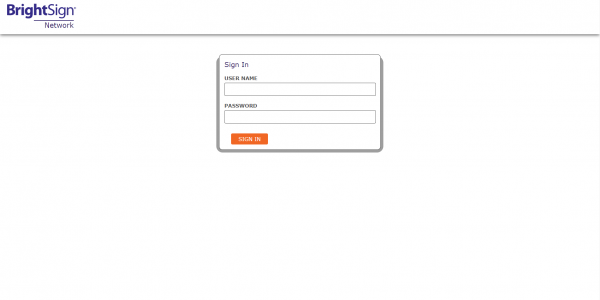
Step 1:

Sign in using your assigned credentials.
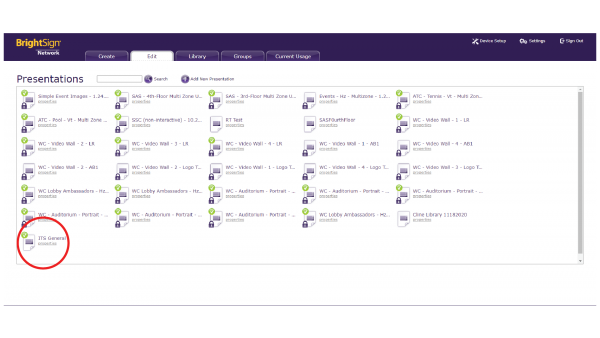
Step 2:

Select “ITS General.”
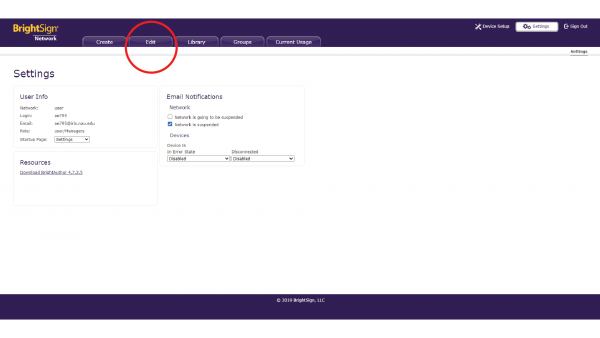
Step 3:

Select “Edit.”
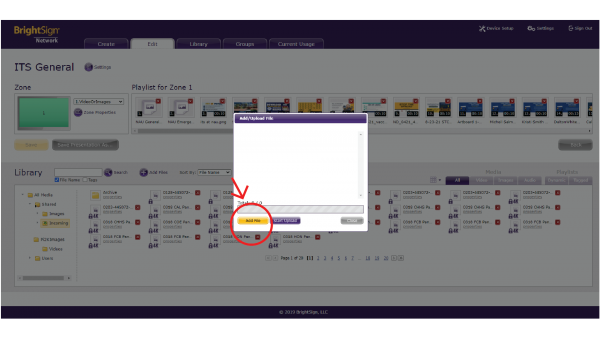
Step 4:

Select “Add File.”

Step 5:

Upload files from your preferred destination.
Step 6:

Once your media is uploaded, drag and drop it to the playlist.
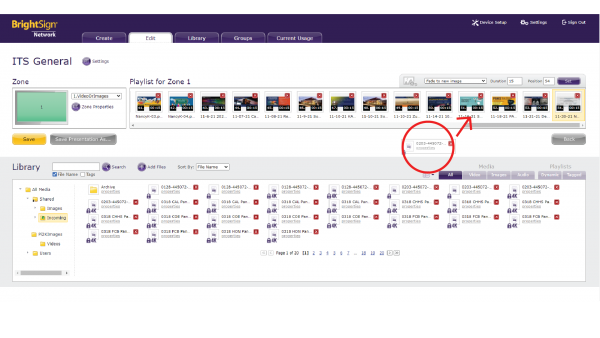
Step 7:

Once your media is in the set playlist set the duration for 15 seconds and the effect to “fade to new image.”
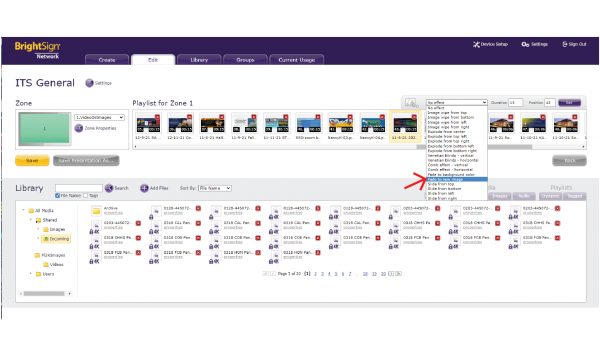
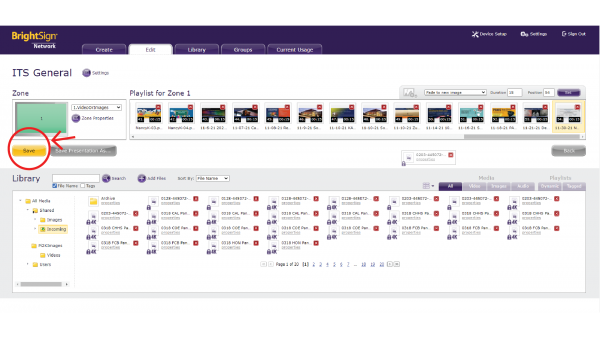
Step 8:

Click the “save” button and you’re done!
Information Technology Services
Location
Building 54
Information Technology Services
1301 S. Knoles Drive
Flagstaff, AZ 86011
Mailing Address
PO Box 5100
Flagstaff, AZ 86011
Email
ask-its@nau.edu
Phone
928-523-3335
888-520-7215
Social Media
Visit us on X Facebook Instagram Youtube