Academic unit site support
Business unit site support
Don't see these options? Not familiar with Enterprise Plus? Please visit the Enterprise Plus homepage.
Image Tiles
Overview Accordion Open
The image tiles shortcode was added to help users navigate to more information using imagery and buttons.
How To Accordion Closed
To add image tiles to your page you can select the shortcode from the toolbar. The media library should then appear. For this shortcode to appear properly you will need to select 2 images.

On Windows you can select two images by holding CTRL while clicking on the two images you would like to use.
On Mac you can select two images by holding COMMAND while clicking on the two images you would like to use.
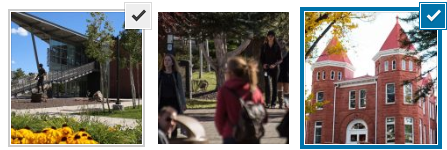
Once you have selected your two images, you can click the red button in the bottom right corner that reads “Use these images”.
[ eplus-image-tiles-row] [ eplus-image-tiles-col]IMAGE
[ eplus-image-tiles-link]HYPERLINKED TITLE[ /eplus-image-tiles-link] [ /eplus-image-tiles-col] [ eplus-image-tiles-col]IMAGE
[ eplus-image-tiles-link]HYPERLINKED TITLE[ /eplus-image-tiles-link] [ /eplus-image-tiles-col] [ /eplus-image-tiles-row]
The following code snippet
[ eplus-image-tiles-row] [ eplus-image-tiles-col]
[ eplus-image-tiles-link]View our Art Exhibit[ /eplus-image-tiles-link] [ /eplus-image-tiles-col] [ eplus-image-tiles-col]
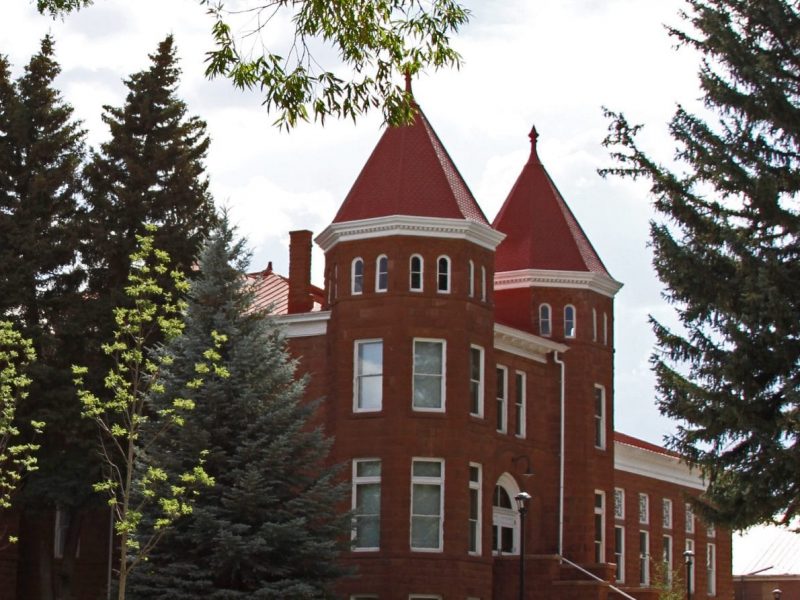
[ eplus-image-tiles-link]Reserve our ballroom[ /eplus-image-tiles-link] [ /eplus-image-tiles-col] [ /eplus-image-tiles-row]
Will create:
Troubleshooting Accordion Closed
I received the following error when selecting my images, why?
Notice: Your first selected image does not appear to have had its “Landscape Image Large” crop created. Please use the Crop Featured Image tool to create one, and then reload this page in order to be able to select it. Notice: Your second selected image does not appear to have had its “Landscape Image Large” crop created. Please use the Crop Featured Image tool to create one, and then reload this page in order to be able to select it.
This notice appears when your image is not a high enough resolution, please refer to Image Size Standards, or your “Landscape Image Large” Crop has not been created.
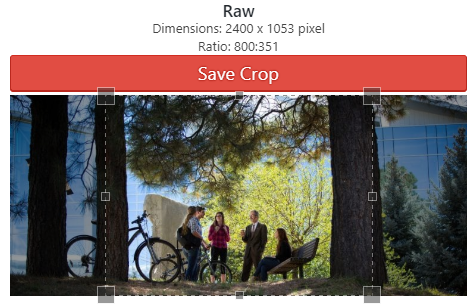
To create this crop, navigate to your Media Library, then find and select your image.
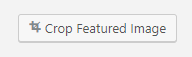
Then select the button, Crop Featured Image.
You will see that the Landscape Image Large crop setting is has a red icon, which indicates that it is currently not available.
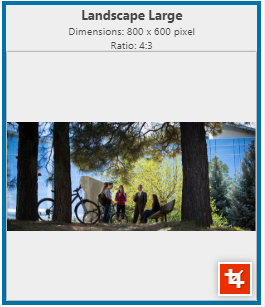
Select the crop thumbnail, then select, Save Crop. Once done, refresh the page in which you were trying to use the Image Tiles. The image will no be available for use in this shortcode.
For any additional questions or concerns, submit a support request, or give us a call 928-523-9267.