Academic unit site support
Business unit site support
Don't see these options? Not familiar with Enterprise Plus? Please visit the Enterprise Plus homepage.
Image and WYSIWYG
Overview Accordion Open
The Image and WYSIWYG (What You See Is What You Get) shortcode was added to easily match text along side imagery. Multiple Image and WYSIWYG blocks can be put together to highlight multiple types of content.
Example Accordion Closed

Northern Arizona University provides exceptional education opportunities in Arizona and beyond.

For nearly 120 years, NAU has delivered a student-centered experience through rigorous academic programs…
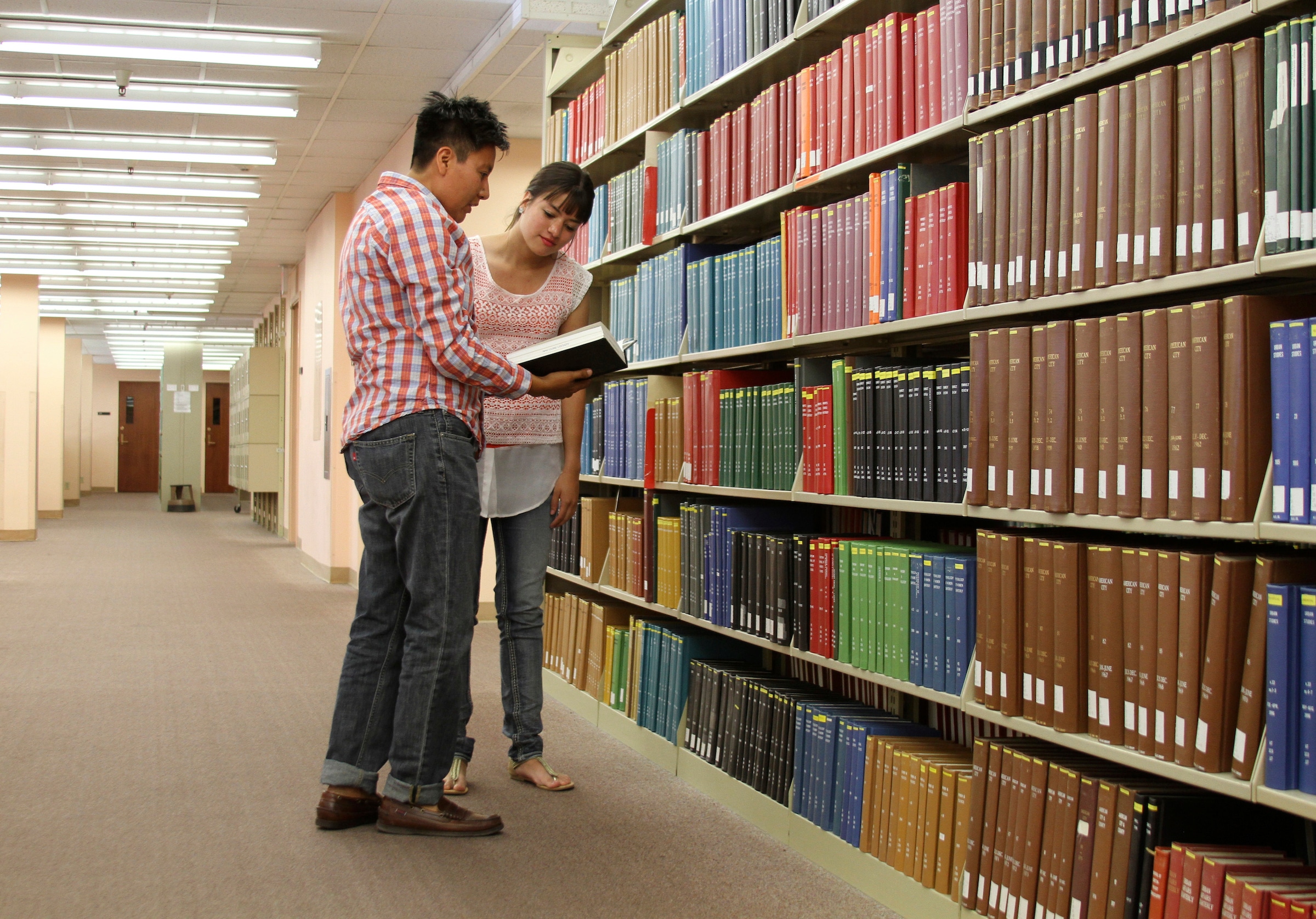
NAU: the ideal university for academic excellence, personal growth, professional success, and world-class adventure.
How To Accordion Closed
To add an Image and WYSIWYG to your page, you can select the shortcode form the toolbar. Two options will appear, that allow you to choose where the image will appear, either left or right of the text.
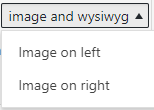
Once you select an option you will have the media library pop-up. You will want to choose a high resolution image, meeting the 2400px width requirement, as this shortcode changes sizes depending on what device it’s being viewed on. When you have selected the image you want to use, select “Use this image” red button in the bottom right corner.
A shortcode with an image ID should appear in your editor.
[ img-opposite-wysiwyg image-align=”POSITION” image-post-id=”ID#“]CONTENT
[ /img-opposite-wysiwyg]
Position will be automatically populated based on what you choose from the initial dropdown. ID# will be automatically populated base on the image you chose. Content is where your text would go.
The following code snippet
[ img-opposite-wysiwyg image-align=”right” image-post-id=”3606″] For nearly 120 years, NAU has delivered a student-centered experience through rigorous academic programs…[ /img-opposite-wysiwyg]
Will create:
For nearly 120 years, NAU has delivered a student-centered experience through rigorous academic programs…
*This shortcode can be used with the background color box.
Troubleshooting Accordion Closed
Why does my image look distorted? Image should be 2400px wide they will resize as needed to show the best picture, if the image is not large enough it will look blurry or stretched.
Why is my image long vertically? The image will expand vertically if you have too much text in the shortcode. Try adding a link that will take the user to a page with more information.
For any additional questions or concerns, submit a support request, or give us a call 928-523-9267.