NAU Events Management How-To
Events at NAU can be entered into two enterprise systems. These systems can help build awareness for your event.
- NAU Events Calendar – build awareness on NAU sites and the NAUgo app
- True Blue Connects – build awareness via direct links and track attendance of your events
Before You Start
Check the Events Calendar and True Blue Connects to make sure your event doesn’t already exist. We often see duplicate events that were entered by different departments. If it’s already there, reach out to the Event Contact to arrange to add additional information, categories and/or keywords to the single event to make it work for both departments.
The NAU Events Calendar is the main platform that houses NAU official and non-official events. To take advantage of the events integration within WordPress or NAUgo, the event must first be created and approved on the NAU Events Calendar. All questions about the events calendar should go to campusevents@nau.edu.
Distribution
Each of the three distribution methods for events requires different information in the event entry. It is important to ensure that events are complete and accurate when submitted.
- On the Events Calendar
- On NAU WordPress sites (uses the event Keyword)
- In the NAUgo app (uses the event Category)
How to Request your Events Management Account
Request your NAU Event Manager account by completing the online form on the Campus Events Operations & Support Team page.
You will be notified via email when your account is set up.
Distribution
Each event will have a unique URL. This URL can be shared on social media posts, flyers, or other marketing materials. The event organizer can also request a friendly URL from ITS. Additionally, organizations can share their True Blue Connects event page where the students can see all organization/department events in one spot.
How to Request your Events Management Account
Sign into True Blue Connects to create an account. To manage events for an organization, please use the contact information on the organization “About Me” page for access.
NAU Events Calendar FAQ
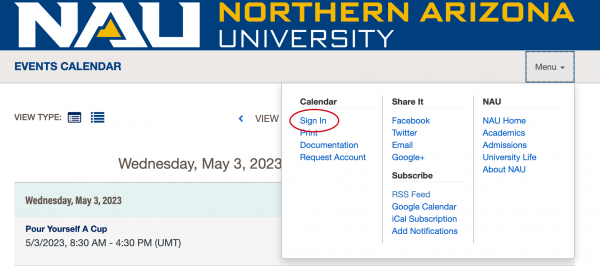
1. Log into the Events Calendar by clicking on MENU then SIGN-IN
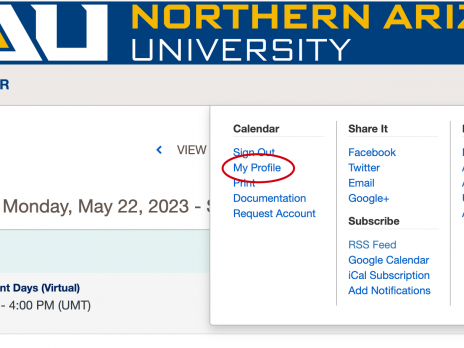
2. Go back to MENU and click MY PROFILE
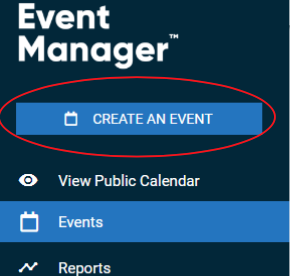
3. Hover over the left of the screen to enable the sidebar. Click CREATE AN EVENT
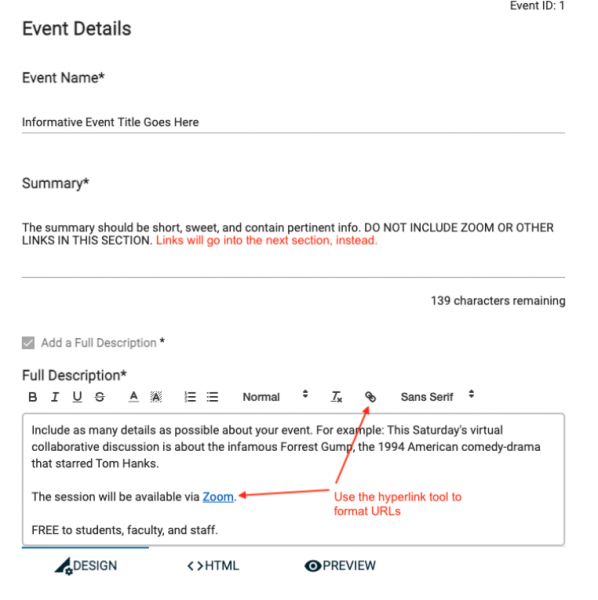
Use an informative and compelling event title that accurately describes the event.
- Bad: Spring Session II (most people will not know what this means)
- Good: Adult Open Swimming Spring Session II
The summary should be short and sweet and contain enough information that the viewer will understand the basic gist of the event. This should be one or two sentences about your event.
This is the place to enter as many details as possible. Include:
- A description of the event
- Who is presenting (if applicable), their credentials
- The intended audience (Students? Faculty? Staff? Community?)
- Cost and cost differences (Free for students? Cost for others?)
- A link to the event registration, or other relevant links
- Link to virtual event
Event Details Example
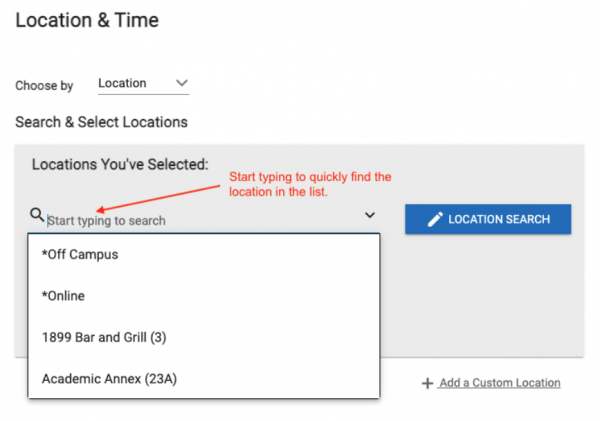
The search box makes it easy to find locations. You can also scroll through the list. All NAU buildings are in the list. If you are unable to find a location, use the +Add a Custom Location link (an example may be a specific off-campus location).
If the event is Online, be sure to select that option.
Note: You’ll be able to add room information later, if needed.
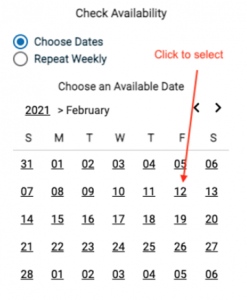
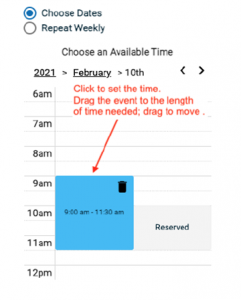
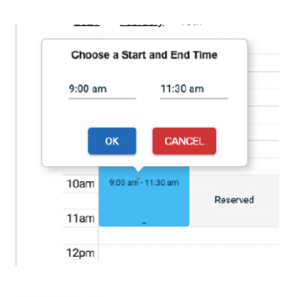
For an event that happens only once, select the date from the calendar. Click on the start time for the event. If necessary, use your cursor to drag the bottom of the event to the end time. Don’t worry if it overlaps with another event (it will say “Reserved”). You can also click on the event time to open a dialog box that allows you to enter the start and end times.
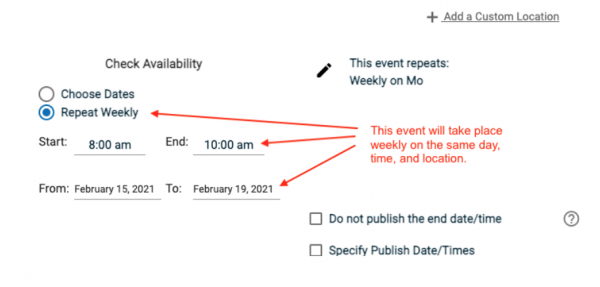
Same Day & Time
To repeat the same event at the same time and on the same day each week, choose REPEAT WEEKLY. Add the start and end dates and times for the event.
Consecutive Dates
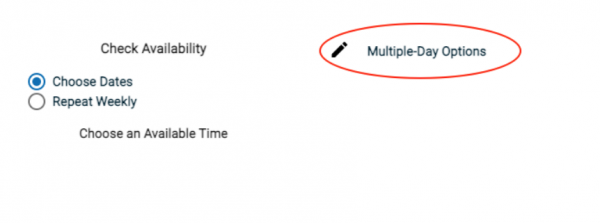
Click Multiple Day Options to set up recurrences that are on consecutive dates.
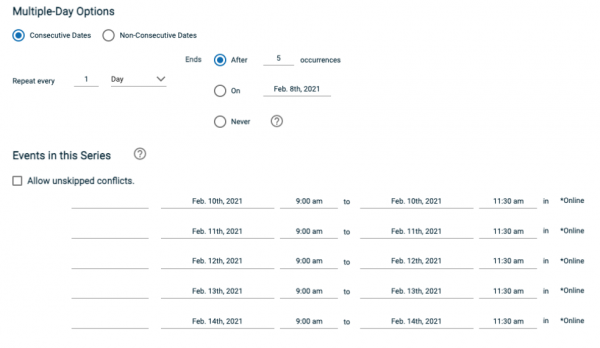
The Mulitple-Day Options screen allows you to customize the event occurrences as desired. Be sure to click Save once you’ve made your selections.
Non-Consecutive Dates
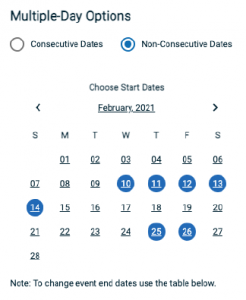
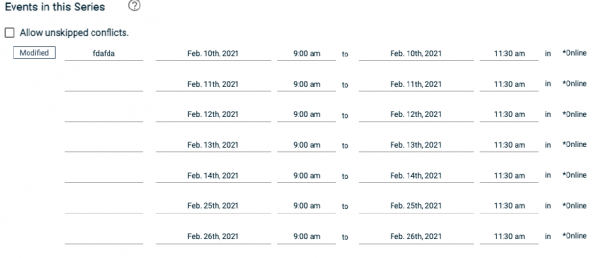
Selecting Non-Consecutive Dates will allow you to select specific dates for your event. This should be used for events that happen during university working hours (for example, an art exhibit that is accessible during gallery hours).
New dates will be added to the list as you click on them. Adjust the start and end times as necessary, and click Save.
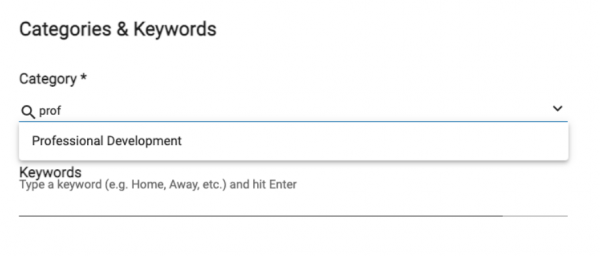
At least one category is required for every event. Keywords are optional but recommended. Categories and keywords are key to ensuring your event shows up correctly on your WordPress site and in the NAUgo app.
You may select multiple categories. Browse through and select those that best match your event. Most fall under Departments & Organizations.
Note: Categories are used by the NAUgo app. If you do not list your event’s categories, it will not appear on NAUgo.
Keywords are important for searching and they are used by WordPress pages. You may enter multiple keywords. If your department or organization WordPress site pulls events onto web pages, be sure to use the correct keyword (this is determined by the department and is often the department name or another keyword that won’t be used by other sites; it must be unique)
Start typing the category you want to filter the list.
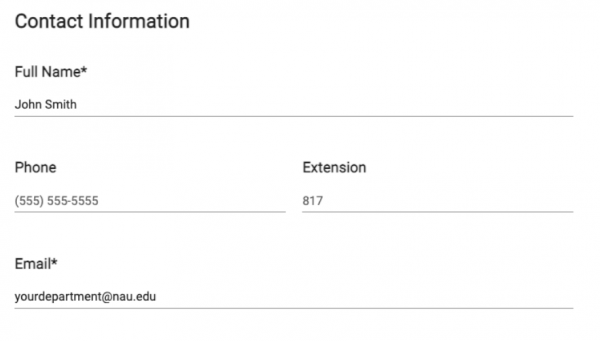
Complete the contact section. A name and email address are required; phone number is optional.
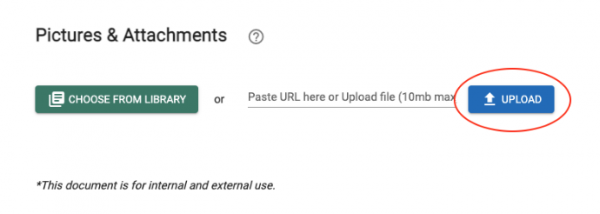
You may add images and attachments for your event. Recommended image size is 800px wide, in JPG format, and smaller than 3MB; 10MB is the maximum size.
Click the upload button and browse to the picture or attachment.
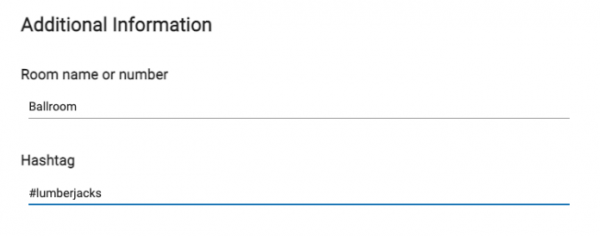
You can add the room name or number, to provide the viewer with specific information about your event. You can also add hashtags here for social searching.
Once all information is complete, Click Save to submit your event to the approval queue.
Events are approved by the Campus Event and Operations Support team. Contact them at campusevents@nau.edu with questions.
True Blue Connects FAQ
More information coming soon!
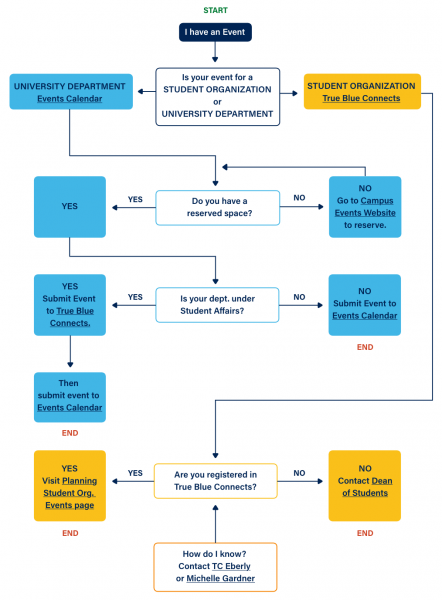
Quick links…
- Go to Events Calendar
- Go to True Blue Connects
- Go to Campus Events Website
- Go to Planning Student Organization Events page
- Contact Dean of Students
- Contact TC Eberly or Michelle Gardner