Academic unit site support
Business unit site support
Don't see these options? Not familiar with Enterprise Plus? Please visit the Enterprise Plus homepage.
Enterprise Plus Page Options
Enterprise Plus provides several options that may be used in combination with each other to affect the page layout, and especially the header/hero layout of your pages.
Landing Page Mode
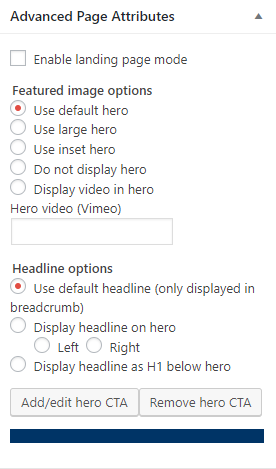 Landing Page Mode can be enabled or disabled at the top of the Page Options. This option should only be used on the homepage of your site as it makes your content span the full width of the page and increases font size in order to better highlight content.
Note:
Since this forces the content to span the whole width of the page, right columns shortcode/layouts cannot be used.
Featured image options
Note: All example pages below are using Landing Page Mode. Standard pages can still utilize these options.
- Default hero
- Large hero – makes the site default banner, or the selected Featured image on the page, taller than the default hero
- Inset hero – displays the entire selected Featured image; it’s a great option when the hero image is not merely decorative, and seeing the entire selected image is important
- No hero – does what it promises: no hero image will be displayed on that page. Use this option when you really want to focus your readers’ attention on your content. This option is best used for second- or third-level pages that contain a lot of information.
- Display video in hero – turns you default hero space into a video from Vimeo, Use this option to showcase content related to your site. To get a video for a banner, please contact Marketing@nau.edu.
Headline options
- Default headline
- Display H1 left or right – allows for you to put the H1 title on the hero image, with your choice of it appearing on the left or on the right side of the page.
- Display H1 below hero – the h1 will appear below the hero image on the left hand side of the page.