Academic unit site support
Business unit site support
Don't see these options? Not familiar with Enterprise Plus? Please visit the Enterprise Plus homepage.
Enterprise Plus buttons
Overview Accordion Open
The Enterprise Plus brings in a 3 new header/format types. They allow for the user to create extra buttons on a single page. This is to help direct users to specific sets of information.
How To Accordion Closed
In order to create buttons through Enterprise Plus format, begin by toggling the toolbar options.

This will open up a 3rd line of options, which includes the “Format” dropdown.
In order to apply one of the 3 formats you first need to create a hyperlinked text. Until you have selected hyperlinked text you will see that the button formats are not an available choice.
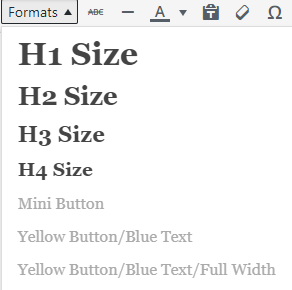
Upon creating a hyperlinked text:
You will then see the button options become available
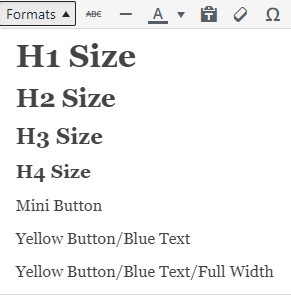
After clicking your desired, button format, the change will not be noticeable. To verify that you have applied the format you can switch to the “Text” editor.

You will then see the “class=’shortcode-button…” text if done correctly.
On the front end you should see:
Troubleshooting Accordion Closed
For any additional questions or concerns, submit a support request, or give us a call 928-523-9267.