How to display a ‘Link’ in Mobile View
NAUgo@nau.edu • (928) 523-1871
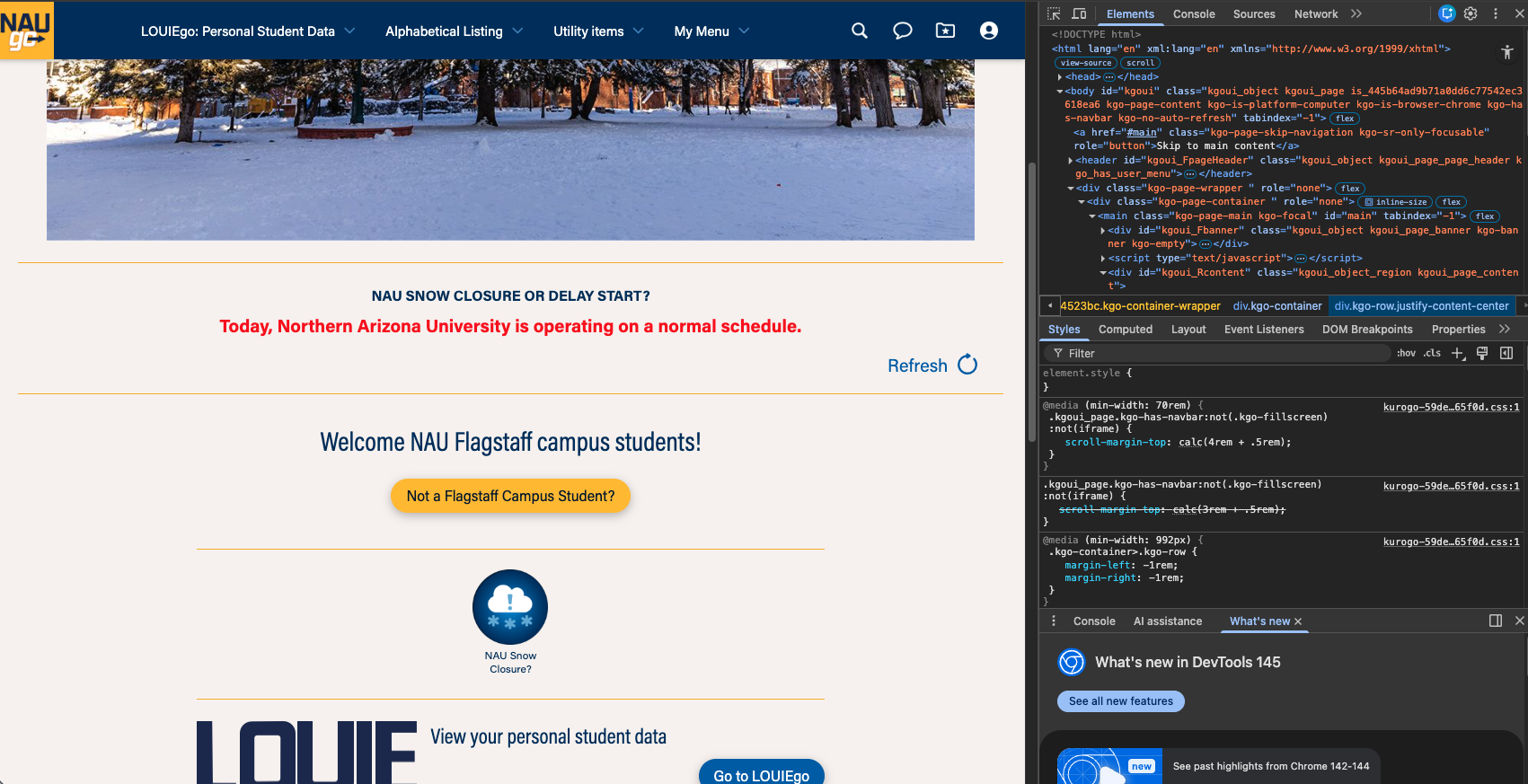
Before: Desktop view.
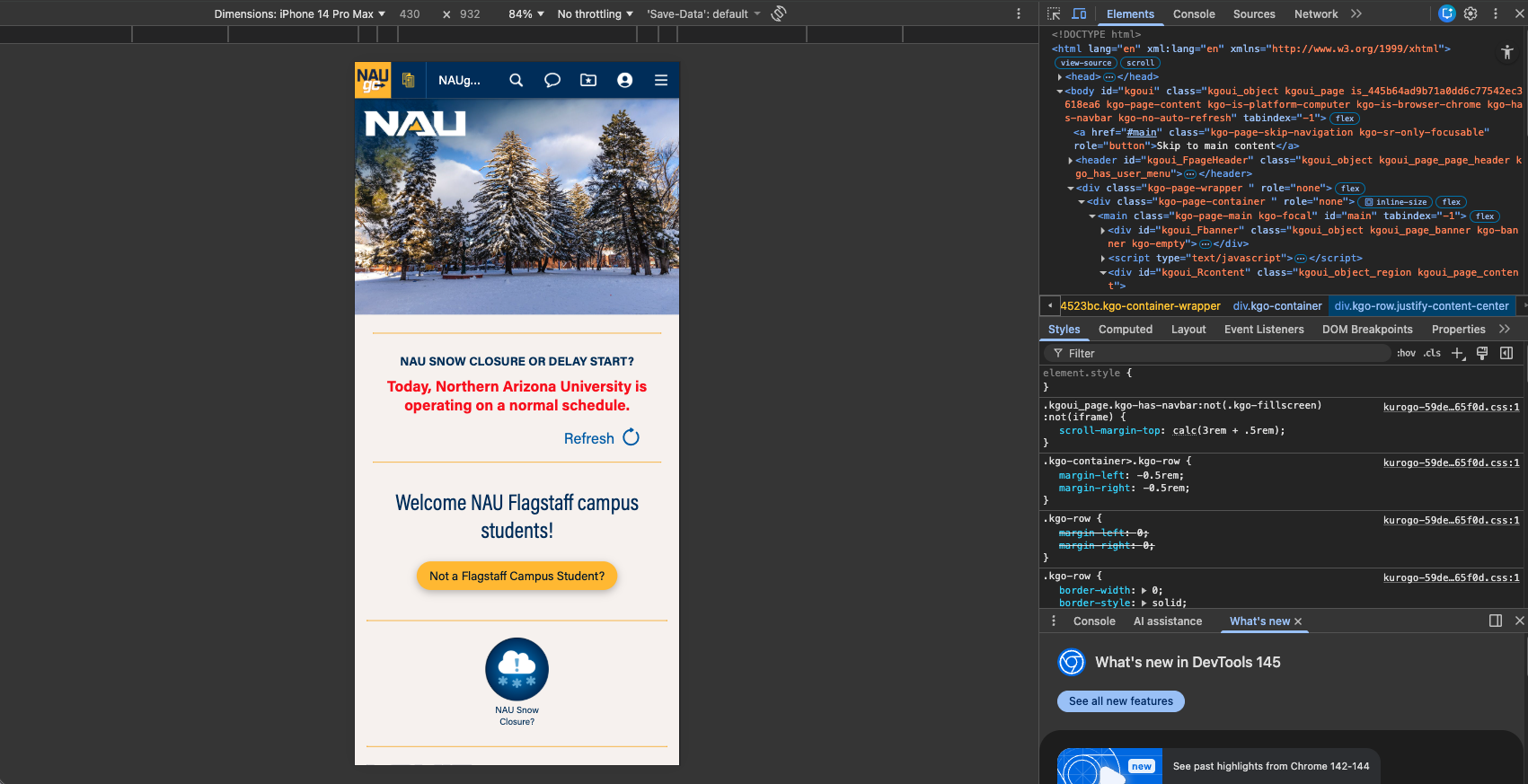
After: Mobile App view.
To view the provided “Screen Link” as it appears on a mobile device (In Chrome) follow these instructions:
- Select the ‘Screen Link’ provided in your email (or copy and paste in Chrome)
- This opens the image in a non-mobile friendly view
- Right Click anywhere on the screen/image
- A popup will appear – At the bottom is “Inspect”
- Select “Inspect” – the image should change to a mobile-friendly view
- Note: You should see a lot of code to the right of the image
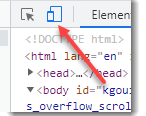
- If the image does not appear as a narrow mobile window automatically, select the button in the upper left of the code that displays the image in the desired format
- Finally, at the top of the mobile-view image, select the “Responsive” dropdown and select iPhone 14 Pro Max
