On Monsoon we currently pre-install two key pieces of software that can help you use open-weight GenAI models: 1) Ollama and 2) Open WebUI. And if you have any suggestions, please let us know at ask-arc@nau.edu.
There are many fully open-weight GenAI models that can be run locally. Though these models lack the performance and agentic features (without additional code) of the most popular consumer chatbots such as ChatGPT and Microsoft Copilot, they can be used in Monsoon workloads without data ingress/egress or compute costs and without entrusting data to other platforms.
Try out the app now by logging into our OpenOndemand instance (https://ondemand.hpc.nau.edu), clicking the “Interactive Apps” tab, and then selecting “Open WebUI (GenAI)” in the drop-down menu. Or directly visit the job submission form page for it here.
The interface will look like this:
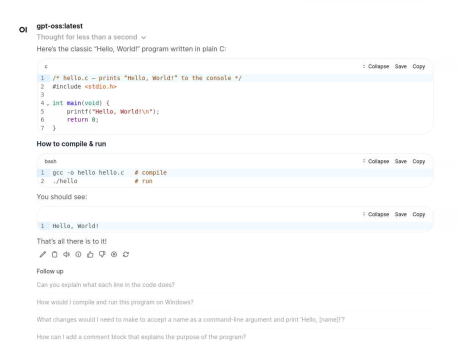
The OOD app starts a desktop instance with a browser for you. But it will show you in a terminal a command that you can run to create an SSH tunnel so that you can connect to it directly from your local desktop, which will run more smoothly and work better with media features (e.g. uploading an image, audio, etc.).
If you are familiar with Ollama, which serves as the back-end, you may want to run it directly. You can do so from an SSH session on a login node like this:
srun -G 1 -C a100 --pty /bin/bash
module load ollama
ollama serve &> /dev/null &
ollama run gpt-oss
Once you execute that third command, you will be able to prompt the LLM with minimal delay as it is loaded into the GPU’s VRAM.
By default, when you load the “ollama” module, you’ll have several models available, which are the ones that we have pre-downloaded for you. But if there is another model that you need, make the ~/.ollama/models directory and then reload the module. Like this:
mkdir -p ~/.ollama/models
module purge
module load ollama
Now, you can explore different models available from the Ollama website and once you have picked a model, run ollama and pull the model:
ollama serve &> /dev/null &
ollama pull MODEL_NAME
But before proceeding with the above, please run it on a data transfer node for any models with a listed size of 10 GB or more. The pull operation is primarily a network download which can bog down the network, and will run faster on a data transfer node (e.g. dtn1 and dtn2).
If you have a specific use case and would like some assistance, consider contacting us at ask-arc@nau.edu.