Job arrays
Job arrays allow you to leverage SLURM’s ability to create multiple jobs from one script. Many of the situations where this is useful include:
- Establishing a list of commands to run and have a job created from each command in the list.
- Running many parameters against one set of data or analysis program.
- Running the same program multiple times with different sets of data.
In these cases, as we have learned thus far, we would have to manually rerun the sbatch command multiple times for each of the aforementioned scenarios. Fortunately, SLURM allows us to automate this procedure using job arrays. Each array is considered to be one “array job” that has a specific ID. Each element of the array is one array task, which has it’s own sub-ID. For example, if your “array job” ID was 1212985, your first “array task” that runs would have an ID of 1212985_0.
Example 1 Accordion Closed
In this first simple example, we have several commands that we would like to run as separate jobs. As we have learned so far, we would have to individually run all of these commands, or create a script that runs each command in a different job step. If we did this, the jobs could take a while because they will be run in sequence. If we use a job array we can ensure that the jobs run in parallel.
First, we make a file called “commandlist” that stores all of the commands we would like slurm to run:
commandlist
sleep 5
sleep 4
sleep 8
sleep 3
sleep 6
Next, we create a bash script called “command_array.sh” that utilizes the SBATCH ––array feature (line numbers have been added for readability):
command_array.sh
1 #!/bin/sh
2 #SBATCH ––job-name=”command-array”
4 #SBATCH ––output=”/scratch/mkg52/command_array-%A_%a.out”
5 #SBATCH ––workdir=”/home/mkg52″
6 #SBATCH ––array=1-5
7
8 command=$(sed –n “$SLURM_ARRAY_TASK_ID”p commandlist)
9 srun $command
There are three lines in particular in this script that make use of the job array feature:
- Line 6 tells SLURM to create an array of 5 items, numbered 1 through 5. This should be changed to match the number of jobs you need to run. In our case, we want this range to match the number of commands in our “commandlist” file.
- Line 8 utilizes one of SLURM’s built in variables, called SLURM_ARRAY_TASK_ID. This accesses the specific task ID of the current task in the job array (e.g. 1 for the first task) and can be used like any bash variable. In this example, “sed” is being used to get the contents of a particular line in the “commandlist” file using SLURM_ARRAY_TASK_ID. For the first task, the “command” variable will be “sleep 5”.
- Line 4 uses a shorthand method of accessing the job array ID and array task ID and embedding them into the name of the output file. The “%A” represents the SLURM_ARRAY_JOB_ID variable (e.g. 1212985) and the “%a” represents the SLURM_ARRAY_TASK_ID variable (e.g. 1). This would generate an output file similar to “command_array-1212985_1.out” for the first element of the array.
To run the job array, simply use sbatch like you would with any other script. (The creation of the array is taken care of by SLURM when it sees the ––array option)
[mkg52@wind ~ ]$ sbatch command_array.sh
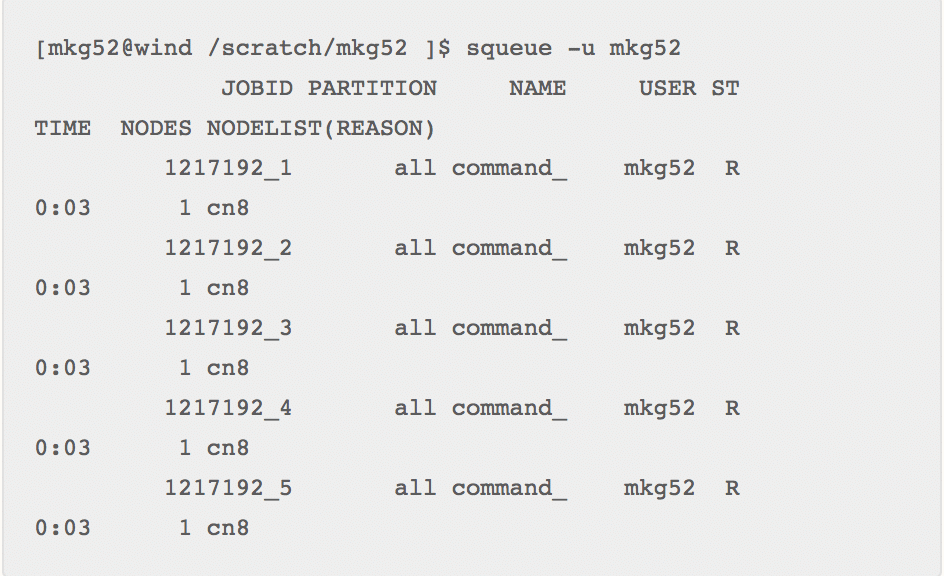
You can see all of the jobs in the array running at once (or at least as many as SLURM will allow based on your priority or fairshare) using the “squeue” command:
Example 2 Accordion Closed
With SLURM, it is also possible to create jobs that send different parameters to the same set of data. In this next example, we are going to use a simple program written in R that calculates the area of a triangle given two sides and an angle as input.
In this scenario we will assume that two of the sides of the triangle are known, but we want to calculate how the area will change if the angle between those two sides changes. Let’s consider each integer angle from 1 to 15 degrees. Below are the R program for calculating the area of the triangle and the bash script that calls the program:
area_of_triangle.r
# take in 3 integers, 2 sides of a triangle and the angle between them
args <- commandArgs(TRUE)
side_a <- strtoi(args[1], base=10L)
side_b <- strtoi(args[2], base=10L)
angle <- strtoi(args[3], base=10L)
area = (1/2)*side_a*side_b*sin(angle*pi/180)
sprintf(“The area of a triangle with sides %i and %i with angle %i degrees is %f”, side_a, side_b, angle, area)
job_array_triangle.sh
#!/bin/bash
#SBATCH ––job-name=”Area of Triangles”
#SBATCH ––output=/scratch/mkg52/area_of_triangle_5_8_%a.out
#SBATCH ––workdir=/home/mkg52
#SBATCH ––array=1-15
module load R
# calculate the area of a triangle with 2 sides given, and a
# variable angle in degrees between them (Side-Angle-Side)
srun Rscript area_of_triangle.r 5 8 ${SLURM_ARRAY_TASK_ID}
The srun command in the “Job_array_triangle.sh” script is passing the same first two arguments (5 and 8) to each task of the array, but is changing the third to be whatever the current task ID is. So the first task calls “srun Rscript area_of_triangle.r 5 8 1” because our first array task starts at 1.
Running the above script with “sbatch job_array _triangle.sh” creates a job array with 15 tasks, thus producing 15 different output files. Each file calculates a unique area. Below is a directory listing of the output folder.

Viewing the contents of one of the files shows the result of the calculation:

Example 3 Accordion Closed
There may be times that you would like to send many different files as input to a program. Instead of having to do this one at a time, you can set up a job array to do this automatically. In this next example, we will be using a simple shell script called “analysis.sh” that takes an input file and an output directory as parameters.
analysis.sh
#!/bin/bash
# analysis.sh – an analysis program
# $1 (input) and $2 (output) are the first and second arguments to this script
# strip off the directory paths to get just the filename
BASE=`basename $1`
# generate random number between 1 and 5
RAND=”$(($RANDOM % 5+1))”
# begin the big analysis
echo “Beginning the analysis of $BASE at:”
date
# the sleep program will just sit idle doing nothing
echo “Sleeping for $RAND seconds …”
sleep $RAND
# now actually do something, calculating the checksum of our input file
CHKSUM=`md5sum $1`
echo “${CHKSUM}” > $2/${BASE}_sum
echo “Analysis of $BASE has been completed at:”
date
In the analysis.sh script we are taking two arguments given to us, the first one being the file to be analyzed, and second the directory to output the analysis to. We are simply sleeping for a random amount of time and running md5sum on the file given to us and outputting the checksum to the output directory.
Let’s say we have 5 different files that we would like our program to analyze. We will store the paths to these input files in another file called “filelist”:
filelist
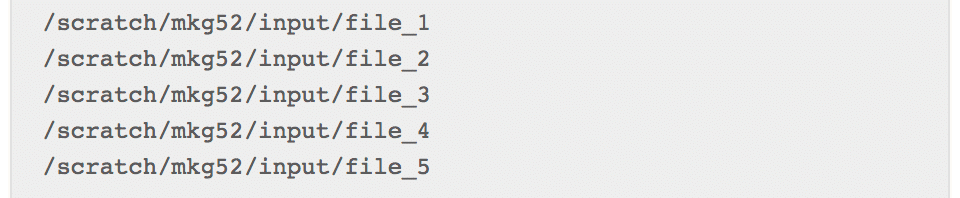
Notice that the paths in “filelist” are absolute paths (starting with the root). **Although it is possible to use relative path names, absolute are recommended.
Then we create a script called “job_array.sh” that uses the command line tool “sed” and the SLURM_ARRAY_TASK_ID variable to get a specific line of that file:
job_array.sh
#!/bin/bash
#SBATCH ––job-name=array_test
#SBATCH ––workdir=/scratch/mkg52/ bigdata
#SBATCH ––output=/scratch/mkg52/ bigdata/logs/job_%A_%a.log
#SBATCH ––time=20:00
#SBATCH ––partition=core
#SBATCH ––cpus-per-task=1
#SBATCH ––array=1-5
name=$(sed -n “$SLURM_ARRAY_TASK_ID”p filelist)
srun /scratch/mkg52/bigdata/ analysis.sh input/$name output
Last, we run the script using sbatch and can see that our output files have been generated in the “output” folder:

**Note: These last 3 examples have shown how you can use job arrays, which by default, will run every task in the array at the same time. If you would rather have the jobs run serially, you can use the %1 option:
#SBATCH ––array=1-5%1