File management
Getting your files to and from monsoon
Advanced Research Computing provides unified storage areas on Monsoon for /home, /scratch and /projects. These storage areas are available on all connected systems: login, compute, and data transfer nodes. All systems have the same up-to-date view of all data on the different storage areas. All users are granted the same quotas on these storage areas:
– /home : 20GB
– /scratch: 15TB, and 1M files
– /projects: 5TB
Utilize the “getquotas” command to check your quotas on these storage areas. For example:

What follows are sets of instructions for transferring files to and from the file systems residing on Monsoon.
Prerequisites:
Linux and Mac OSX – scp Accordion Closed
If your primary desktop is a Mac or Linux system, you can use the scp command to copy files to and from Monsoon. For example, say you’d like to transfer a file called assembly.py and your desktops name is workstation.lab.nau.edu. On workstation.lab.nau.edu, open up a terminal and run the command:
$ scp ~/path/mywork/assembly.py nauid@monsoon.hpc.nau.edu:~/Where nauid is your NAU user id.
If you are transferring a whole directory you will do it similarly but with the -r switch like so:
$ scp -r ~/path/mywork/assembly_data
nauid@monsoon.hpc.nau.edu:/scratch/nauid
Mac OSX – SMB / CIFS Accordion Closed
You can also transfer files to Monsoon using a GUI approach with SMB or CIFS.
1. Open the Finder app.
2. Click the Go menu, and click Connect to Server.
3. In the server address box type: smb://shares.hpc.nau.edu/cirrus, then click Connect.
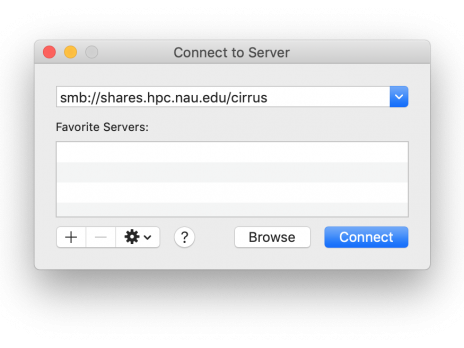
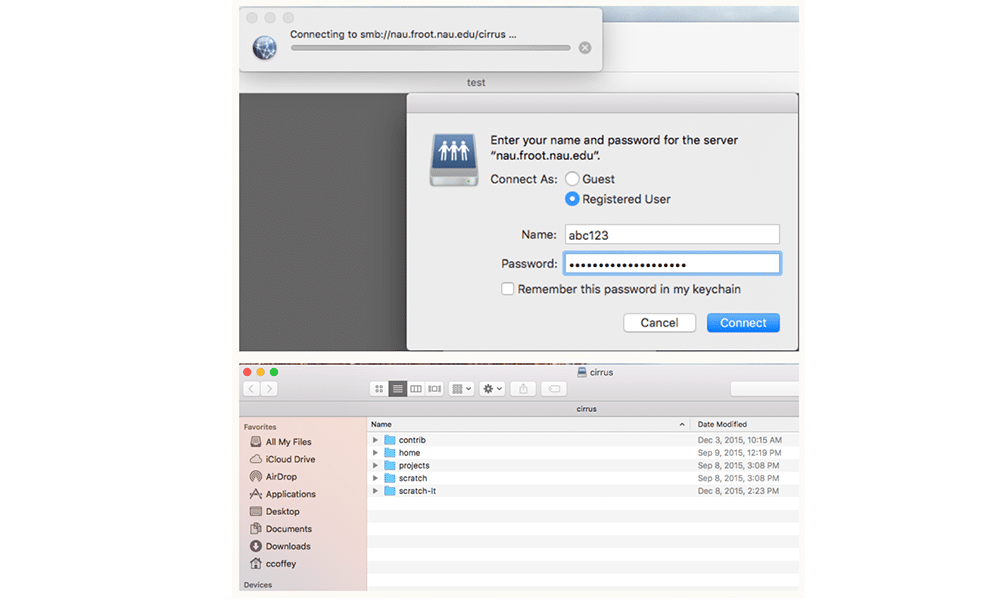
Enter your NAU credentials and click ok. Select the filesystem that you would like to connect to and click ok. From here you can transfer files just as you would using the Finder app.
Windows – SMB / CIFS Accordion Closed
Just like on the Mac, you can transfer files to and from Monsoon using a GUI approach with SMB or CIFS.
1. Open a File Explorer window and type \\shares.hpc.nau.edu\cirrus into the address bar and click enter. Make sure you use the appropriate back-slashes.
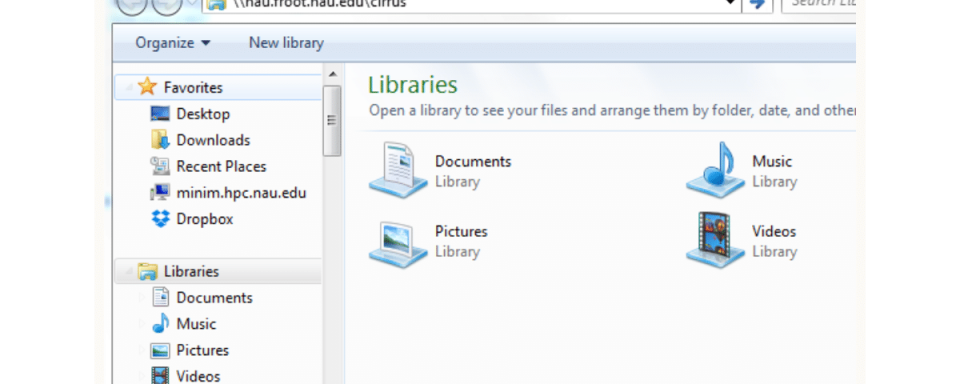
2. Enter your NAU credentials and click ok. From here it should be pretty straight forward transferring your files back and forth to and from Monsoon.