FAQs
Why is my job pending? Accordion Closed
Most of the time, questions that we get about the cluster related to why jobs are not starting(in the pending or “PD” state). There are often many different contributing factors to this.
When jobs remain pending for long periods of time, you can see why by running the “squeue” command. The reason slurm has declared your job to be “pending” will be listed in parentheses under the (REASON) column. For example, if user abc123 wanting to see all jobs that were pending, he would enter
squeue -u abc123 -s PD
The following questions on this page explain what these different reasons are and how you can avoid them in the future.
Dependency Accordion Closed
This occurs when a job “depends on” another being completed before it is allowed to start. This will only happen if a dependency is specified inside the job script using the –– dependency option.
DependencyNeverSatisfied Accordion Closed
This occurs when a job that must run first in a dependency fails. This usually means that there was an error of some kind that caused SLURM to cancel the job. When this happens, any jobs that depend on the failed job will never be allowed to run.
ReqNodeNotAvail Accordion Closed
This occurs when a requested node is either down, or there is currently a reservation in place for it. If you have requested a specific node in your job script using the “––nodelist” command, try removing this option in order to speed your job along. Slurm is very good at allocating resources, so it is often best to let it decide which nodes and processors to use in order to run your job.
To see if the node you requested is down, run
sinfo -N -l
AssocGrpCPURunMinsLimit/AssocGrpMemRunMinsLimit Accordion Closed
This occurs when either the associated account or QOS that you belong to is currently using all available CPU minutes or MEM minutes it has been allotted. Read more about Monsoon’s GrpCPURunMinsLimit.
Resources Accordion Closed
This occurs when any resources that you have requested are not currently available. This could refer to memory, processors, gpus, or nodes. For example, if you have requested the use of 20 processors and 10 nodes, and there is currently a high volume of jobs being run, it is likely that your job will remain in the pending state due to “Resources” for a long time.
Priority Accordion Closed
This occurs when there are jobs ahead of yours that have a higher priority. Not to worry, you can help alleviate this issue by updating your job time limit to a lower estimate (See the man page for the “scontrol” command). For example, if you have put “––time=1-00:00:00” in your script, Slurm will set your time limit to one day. If you know your job will not take longer than four hours, you can set this number accordingly and Slurm will give you a higher priority due to the lower time limit. This is because we have the backfill option turned on in Slurm which will enable small jobs (lower time limit) to fill the unused small time windows.
JobHeld/admin Accordion Closed
This occurs when your job is being held by the administrator for some reason. Email hpcsupport@nau.edu to find out why.
Expedite your job’s start time Accordion Closed
Sometimes jobs will remain in the pending state indefinitely due to certain settings in the job script. Here is a list of things you can do to ensure that your job gets going:
- Give your script a lower time limit (if at all possible).
- If you know the job will take a long time, try breaking it up into several different scripts that can be run separately and with shorter time limits. Consider job arrays for this. Also, the dependency option allows you to be sure that one job runs before another.
- Don’t request specific nodes.
- Don’t request more memory than you need.
- Don’t request more cpus than you are launching tasks, or threads for.
- Avoid using the “––contiguous” or “––exclusive” options, as these will limit which nodes your job can run on.
Requesting more memory Accordion Closed
Requesting a specific amount of memory in your script can be done using the “––mem” option. This amount is in megabytes (1000 MB is 1 GB). If you wanted 150 GB of memory, just multiply that number by 1000 to get the amount in MB. The example below shows the line on your script that you would add if you wanted to allocate 150 gigabytes of memory:
#SBATCH ––mem=150000
Requesting more CPUs Accordion Closed
If you would like your job to use a certain number of cpus, you may request this using the “––cpus-per-task” option. For example, if you would like each task in your script (each instance of srun you have) to use 3 cpus, you would add the following line to the script:
#SBATCH ––cpus-per-task=3
Requesting the GPU Accordion Closed
Monsoon currently has two nodes designated for gpu-accelerated computing. These nodes contains two or more Nvidia Tesla K80s, which provides a total of 20 GPU cores. If you are running a job that can take advantage of these resources, you would add the “––gres” option to your script. For example, to request 2 GPU cores, add this line:
#SBATCH ––gres=gpu:tesla:2
** Access to the gpus requires additional access. Please send an email to hpcsupport@nau.edu with your request, in addition to the project, and the software that you hope to use them with.
GPU availability Accordion Closed
Monsoon currently has 20 gpu cores available to SLURM as resources. To see if there are any available run the following command:
gpu_status
If there are cores in use, you will get one to several lines of output in the format gpu:tesla:. Adding all of the numbers displayed will give the total number of gpus currently in use. If the count adds up to 4, then all of the gpu cores are currently being used. If nothing is displayed, then all of the cores are available.
Job resources Accordion Closed
You can determine the efficiency of your jobs with the jobstats utility. Running “jobstats” without any flags will return all your jobs of the previous 24 hours. To see older jobs, add the -S flag followed by a date in the format YYYY-MM-DD. Example: “jobstats -S 2019-01-01”.
Here is some sample output of running jobstats:


Your efficiency is calculated with a variety of factors, including the number of CPUs you use, how long your job runs, and your memory usage.
Additional options are available. Use “jobstats -h” to see all available options.
Creating an Enterprise Group Accordion Closed
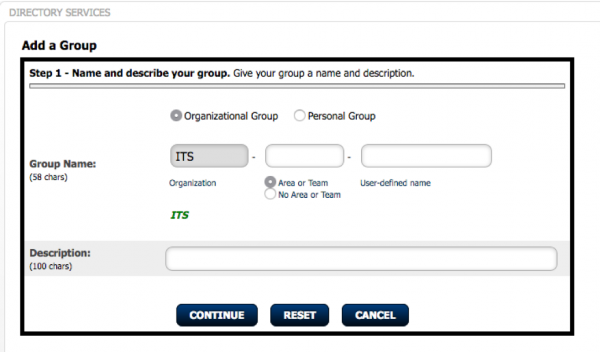
Enterprise Groups are a method used by HPC/ARSA to manage who has access to specific folders on the cluster. In regards to project areas on Monsoon, it will allow you as the data manager for your project, to assign who on the cluster has access to your data repository. That way, you can add or remove access at your will and not have to wait for us to add and remove people for you. This assumes that people you add have a monsoon account.
Currently, Enterprise Groups are managed by end-users through the Directory Services tab at my.nau.edu.
Managing Access to an Enterprise Group Accordion Closed
To manage access to project space, you will need to login to the My NAU web-portal: http://my.nau.edu.
Once you open the page, on the right hand side of the page (or if you have a narrow window, towards the bottom of the page) you will see the Directory Services section title, and under that a link to “Open Directory Services”.

This link will take you to a new page, then click on “Enterprise groups”. From here, you will click on “modify” for your group.

From here you can add/subtract uids of the group members. Once you are done, scroll to the bottom of the page and click “modify group”.
Licensing Accordion Closed
Licenses can be requested like any other resource in your SLURM scripts using #SBATCH ––licenses:<program>:<# of licenses>. Read the documentation on licensing for more information.
Configuring/moving where Anaconda keeps its data Accordion Closed
By default, Anaconda (or “conda”) stores the data for all environments you create in your home directory, at ‘/home/abc123/.conda‘ which could potentially create a quota issue if a user creates large or numerous environments. If your 10G home quota does not suffice, we can discuss expanding it to 20G. Often, however, a better workaround is to simply tell Anaconda to use your /scratch area instead of your /home area.
(Note that unix/linux systems treat files/directories that start with a period as “hidden” and often require something like an extra command flag to display them. For example, “ls -l ~/” will not list your ‘.conda’ directory, but “ls -la ~/” will list it, and other “hidden” files.)
First, if you already have established conda environments that you wish to keep, you’ll want to move your existing data directory to the location of your choice in your scratch area (and you may also rename it, if desired). For example, “mv ~/.conda /scratch/abc123/conda” will move your dot-prefixed ‘.conda’ directory to a non-hidden ‘conda’ directory in your /scratch area.
Next, using the text-editor of your choice, carefully add the following lines to your ‘~/.condarc’ file, replacing abc123 with your own user ID:
envs_dirs:
  - /scratch/abc123/conda/envs

pkgs_dirs:
  - /scratch/abc123/conda/pkgs
Now, conda environments and packages will continue be accessed/stored at ‘/scratch/abc123/conda/‘.
Managing and utilizing Python environments on Monsoon Accordion Closed
We utilize the Anaconda Python distribution on Monsoon. If you’d like to create a Python environment in your home to install your own packages outside of what is already provided by the distribution, do the following:
- module load anaconda
- conda create -n tensorflow_env tensorflow (where tensorflow_env is your environment name, and tensorflow is the package to be installed into your new environment)
- source activate tensorflow_env
With the environment activated, you can install packages locally into this environment via conda, or pip.
Example:
_________
#!/bin/bash
#SBATCH ––job-name=pt_test
#SBATCH ––workdir=/scratch/abc123/tf_test/output
#SBATCH ––output=/scratch/abc123/tf_test/output/logs/test.log
#SBATCH ––time=20:00
module load anaconda/latest
srun .conda/envs/tensorflow_env/bin/python test_tensorflow.py
Parallelism Accordion Closed
Many programs on Monsoon are written to make use of parallelization, either in the form of threading, MPI, or both. To check what type of parallelization an application supports, you can look at the libraries it was compiled with. First, find where you app is located using the “which” command. Then run “ldd /path/to/my/app.” A list of libraries will be printed out. If you see “libpthread” or “libgomp”, then it is likely that your software is capable of multi-threading (shared memory). Please read our segment on shared-memory parallelism for more info on setting up your Slurm script.
If you see libmpi* listed, then it is likely that your software is capable of MPI (distributed memory). Please read our segment on distributed-memory parallelism for more info on setting up your Slurm job script.
Running X11 Jobs on Monsoon Accordion Closed
Some programs run on the cluster will be more convenient to run and debug with a GUI. Due to this, the Monsoon cluster supports forwarding X11 windows over your ssh session.
Running X-Forwarding
Enable X-forwarding to your local machine is fairly straightforward.
Mac/Linux
When connecting to monsoon using SSH, add the -Y flag
ssh abc123@monsoon.hpc.nau.edu -YWindows
On PuTTY, in the left menu navigate to SSH->X11 and check Enable X11 forwarding
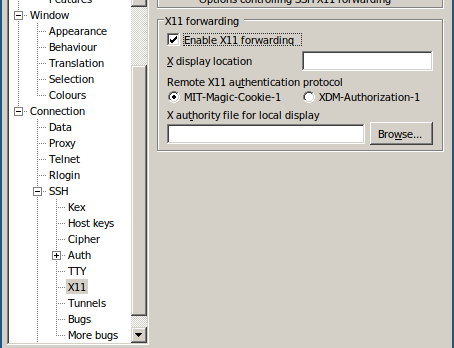
After connecting to Monsoon, running the GUI program with srun will create your window.
srun xeyesFor some programs, such as matlab, in order to ensure the window appears, add the ––pty flag to srun.
module load matlab
srun ––pty -t 5:00 ––mem=2000 matlab # Start an interactive matlab sessionRestoring Deleted Files Accordion Closed
What if I delete a file that I need?
Snapshot of all home user directories are taken twice a day. What this means is if you accidentally delete a file from your home directory that you need back, if it was created before a snapshot window, you will be able to restore that file. If you do an ls of the snapshot directory (ls /home/.snapshot), you may see something like the following:
@GMT-2019.02.09-05.00.01 @GMT-2019.02.10-18.00.01 @GMT-2019.02.12-05.00.01 latest
@GMT-2019.02.09-18.00.02 @GMT-2019.02.11-05.00.01 @GMT-2019.02.12-18.00.01
@GMT-2019.02.10-05.00.01 @GMT-2019.02.11-18.00.01 @GMT-2019.02.13-05.00.01
Each of the directories starting with @GMT are a backup. if my userid is ricky I can check my files like the following:
ls -la /home/.snapshot/@GMT-2019.02.12-18.00.01/ricky
if I know I had my file before 6pm on the 12th. I would see all of the files that I had at the time of the snapshot. If there were a file called dask_test.py that I needed to restore from that snapshot, I could type in the following:
cp /home/.snapshot/@GMT-2019.02.12-18.00.01/ricky/dask_test.py /home/ricky
Your file would then be restored.
Requesting Certain Node Generations Accordion Closed
Monsoon has four generations of nodes ordered by age (oldest first):
- Sandy Bridge Xeon, 4 socket, 8 core per socket, 2.20GHz, 384GB mem # request with #SBATCH -C sb
- Haswell Xeon, 2 socket, 12 core per socket, 2.50GHz, 128GB mem # request with #SBATCH -C hw
- Broadwell Xeon, 2 socket, 14 core per socket, 2.40GHz, 128GB mem # request with #SBATCH -C bw
- Skylake Xeon, 2 socket, 14 core per socket, 2.60GHz, 196GB mem # request with #SBATCH -C sl
To select a certain generation, just put #SBATCH -C <generation> in the job. For instance to have a job run on Broadwell nodes only:
#!/bin/bash
#SBATCH ––job-name=myjob                    # job name
#SBATCH ––output=/scratch/abc123/output.txt # job output
#SBATCH ––time=6:00
#SBATCH ––workdir=/scratch/abc123           # work directory
#SBATCH ––mem=1000                          # 2GB of memory
#SBATCH -C bw              # select the Broadwell generation

# load a module, for example
module load python/2.7.5

# run your application, precede the application command with srun
# a couple example applications ...
srun date
srun sleep 30
srun date
How to request specific model of GPU Accordion Closed
#SBATCH -C p100 # (p100)
#SBATCH -C v100 # (v100)
#SBATCH -C k80 # (k80)
v100 is the latest model of these Nvidia chips.
View the specifications of these Nvidia GPUs:
RStudio Missing Project Folder Accordion Closed
system(“ls /projects/<insert proj name>/PROJ_DETAILS”)